
To create an email signature in your emails, follow the steps below:
- Log in to your Gmail Account
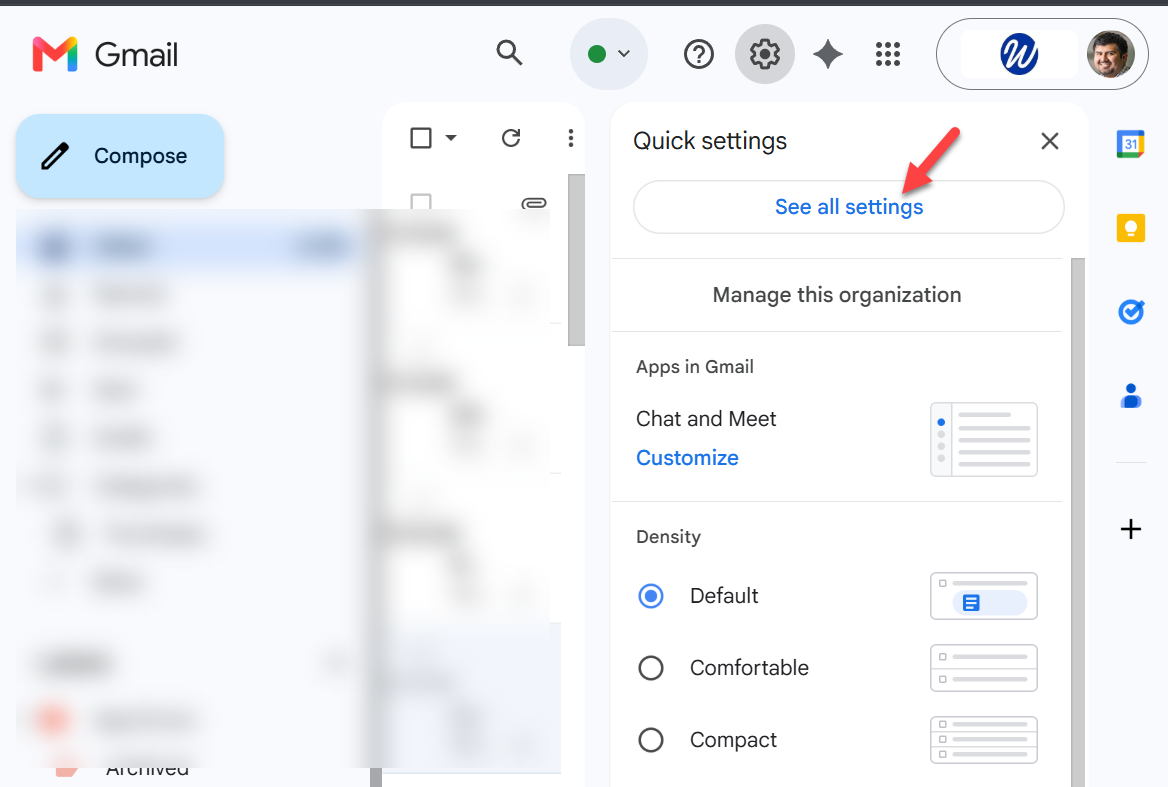
- Click on the Gear icon to go to the settings

- Click on See all settings option
- Under the General tab, scroll to the Signatures section:
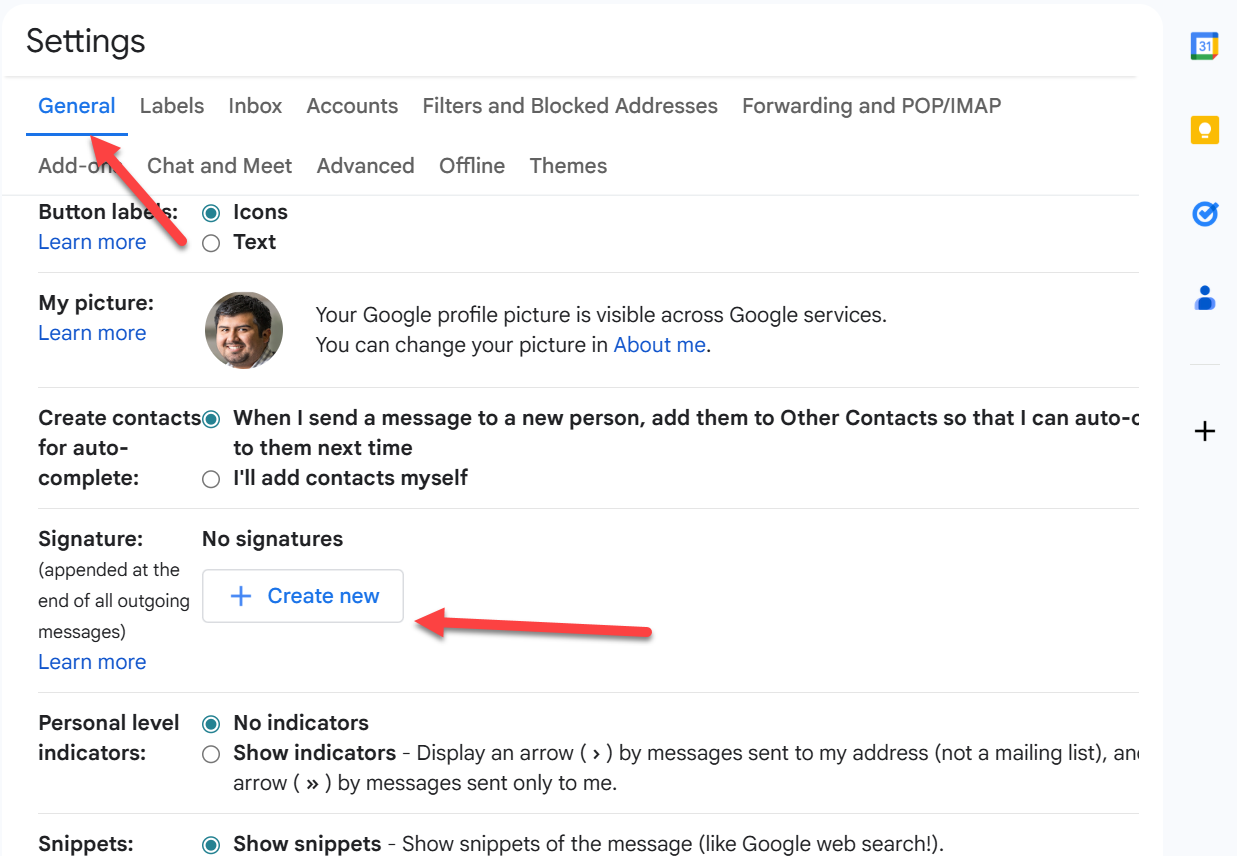
- Click on + Create new:
- Enter a name for the signature:
- Name it: Window World Signature
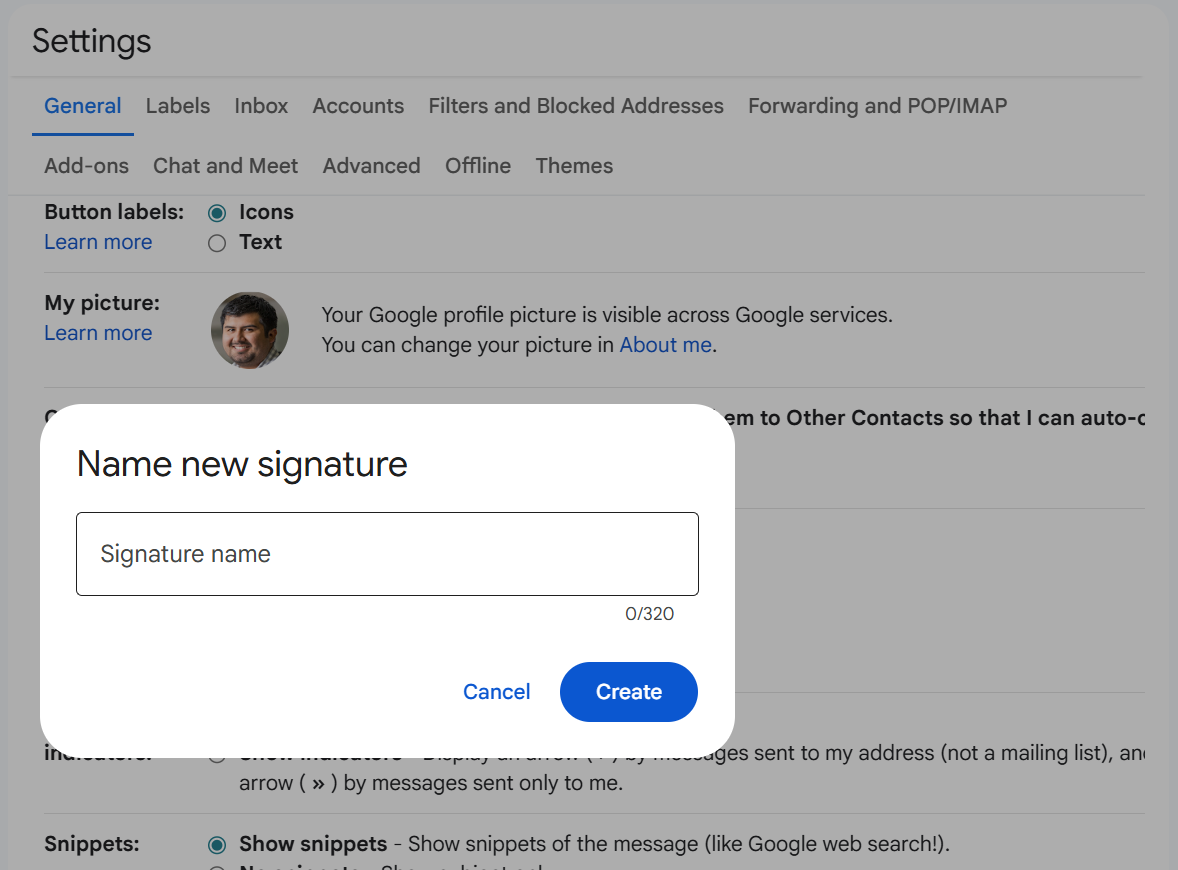
- Name it: Window World Signature
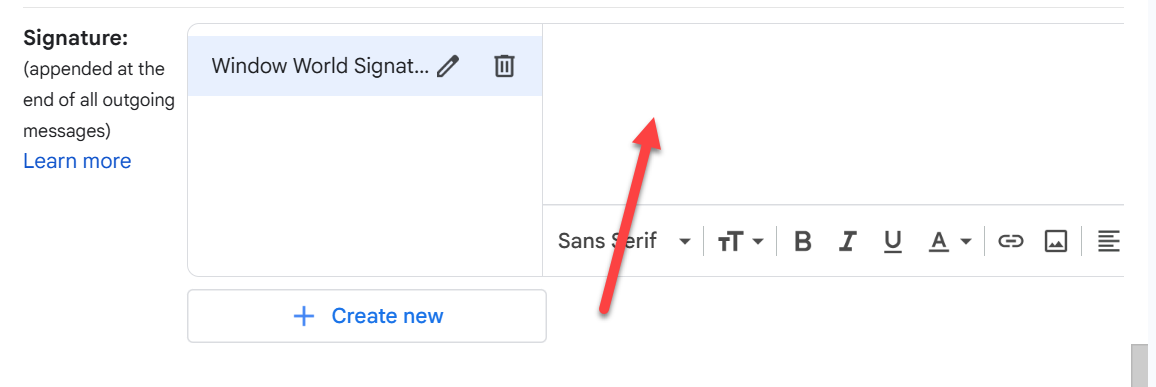
- Once added, in the text window, copy and paste the proper signature from below:
- Key items to update:
- Name
- Job title
- Phone number
- Email address
- Signature defaults, for this update the signatures to the desired signatures to use:
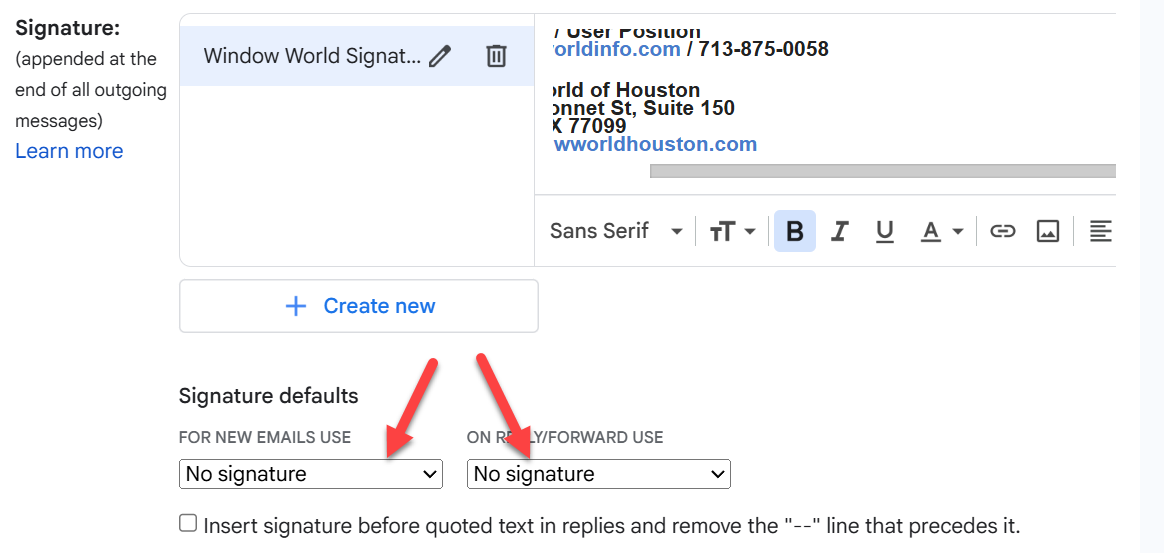
- For New Emails use, this will be applied to new emails
- On Reply/Forward Use, this will be applied when you reply to an email or forward a response
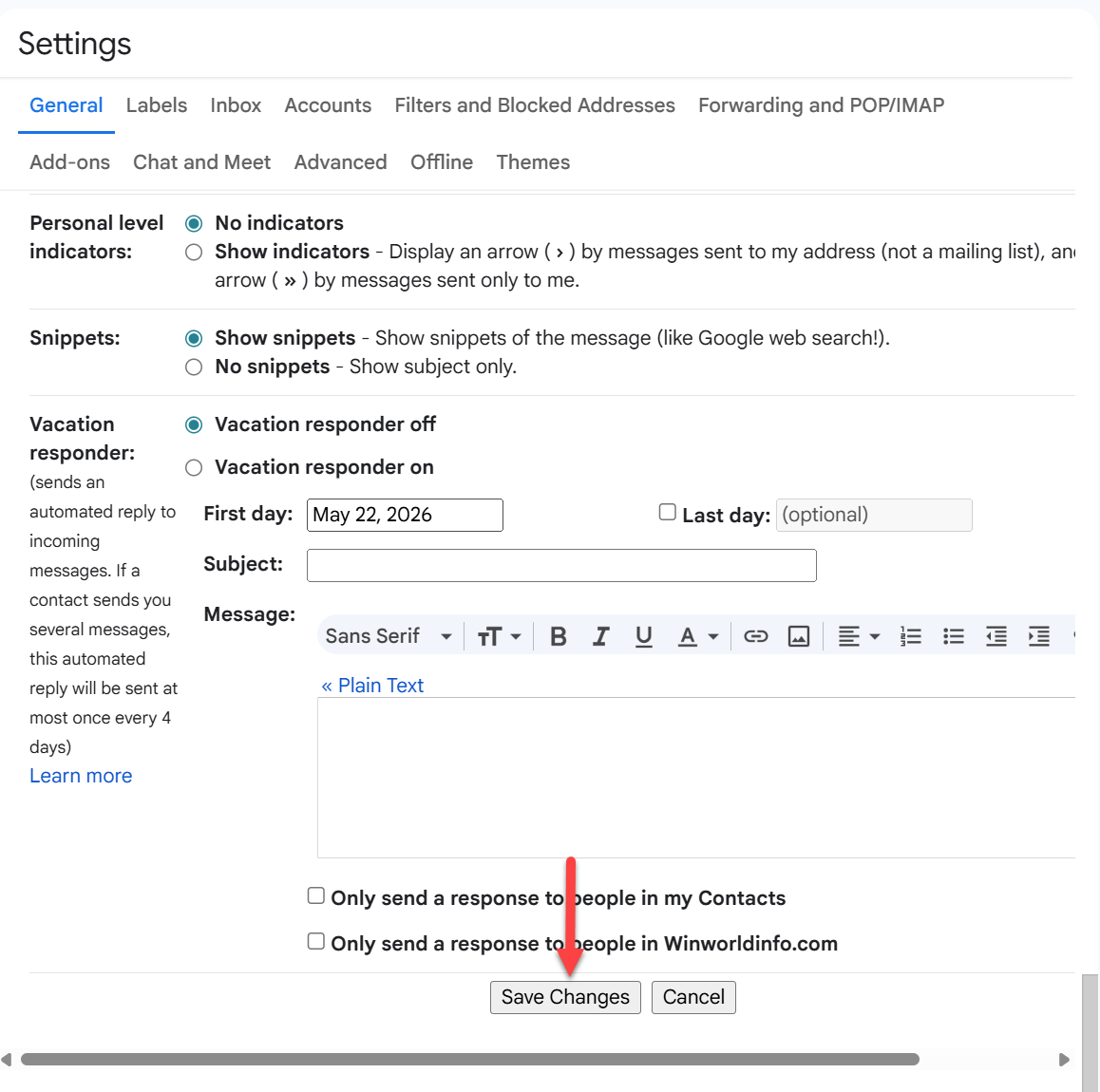
- Scroll to the bottom of the page and click Save Changes.
- Test the signatures: Send yourself a test email to confirm the logo, links, spacing, and contact information look correct.
- Click on the Gear icon to go to the settings
Email Templates:
BTR employee:

User Name| User Position
Window World
(225) 706-2100
8405 Airline Highway
Baton Rouge, LA 70815
www.windowworld-btr.com
HOU employee:

User Name / User Position
flast@winworldinfo.com / 713-875-0058

Window World of Houston
10540 Bissonnet St, Suite 150
Houston, TX 77099
www.windowworldhouston.com
TPA employee:

User Name
User Position
Window World of Tampa Bay
10741 Endeavour Way
Seminole, FL 33777
813-386-7498 (Office)
813-807-1542 (Cell)
User Position
Window World of Tampa Bay
10741 Endeavour Way
Seminole, FL 33777
813-386-7498 (Office)
813-807-1542 (Cell)
https://www.windowworldtampa.com/
DFW employee:


User Name/ User Position
flast@winworldinfo.com

Window World of DFW
(972) 623-9993
2520 N Great SW Pkwy, Suite 100
Grand Prairie, TX 75050
https://www.windowworlddfw.