Creating and using filters in Gmail
Print
Created by: Kataj Darden
Modified on: Mon, 27 Oct, 2025 at 1:22 PM
Create a filter:
- Open Gmail.
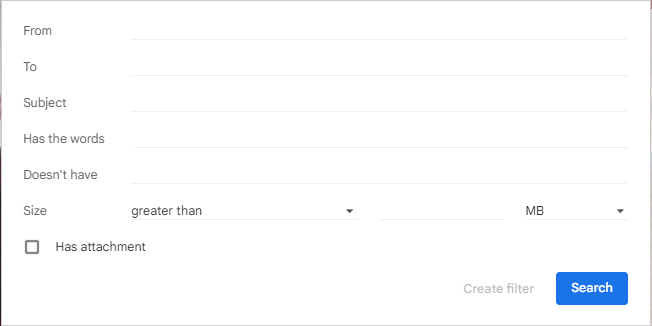
- In the search box at the top, click the Show search options icon.

- Enter your search criteria.
- At the bottom of the search window, click Create filter.
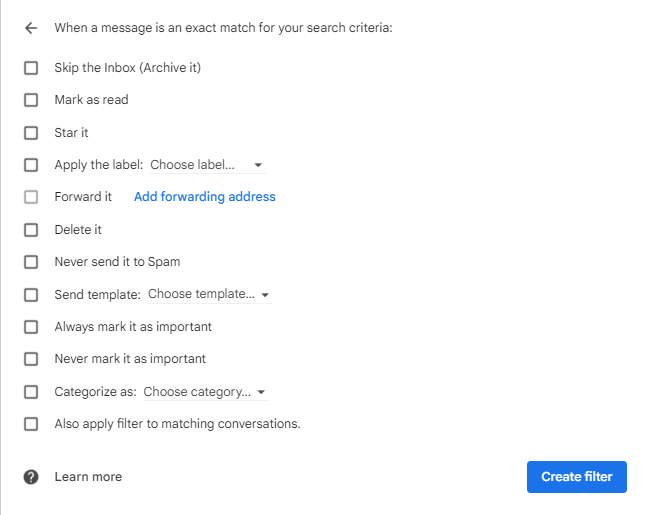
- Choose what you'd like the filter to do. Here, you have a multitude of options that you can choose for the specified type of emails. For example, to skip your inbox and be applied under a label you would click the "Skip the Inbox" and "Apply the label" boxes.
Use a particular message to create a filter:
- Open Gmail.
- Check the checkbox next to the email you want.
- Click the More icon at the top (three vertical dots)
- Click "Filter messages like these."
- Enter your filter criteria.
- Click Create filter.
Edit or delete filters:
- Open Gmail.
- At the top right, click the Settings icon and then See all settings.
- Click Filters and Blocked Addresses.
- Find the filter you'd like to change.
- Click Edit or Delete to remove the filter. If you’re editing the filter, click Continue when you’re done editing.
- Click Update filter or OK.
Export or import filters
- Open Gmail.
- At the top right, click Settings Settings and then See all settings.
- Click Filters and Blocked Addresses.
- Check the box next to the filter, then click export.
- To import, click "import filters" and choose the file that contains the filters.
Kataj is the author of this solution article.
Did you find it helpful?
Yes
No
Send feedback Sorry we couldn't be helpful. Help us improve this article with your feedback.
