
To set up a user, ensure that you create their account in the proper environment:
- There are 4 environment, you should have an administrative account:
- HOU
- BTR
- DFW
- TPA
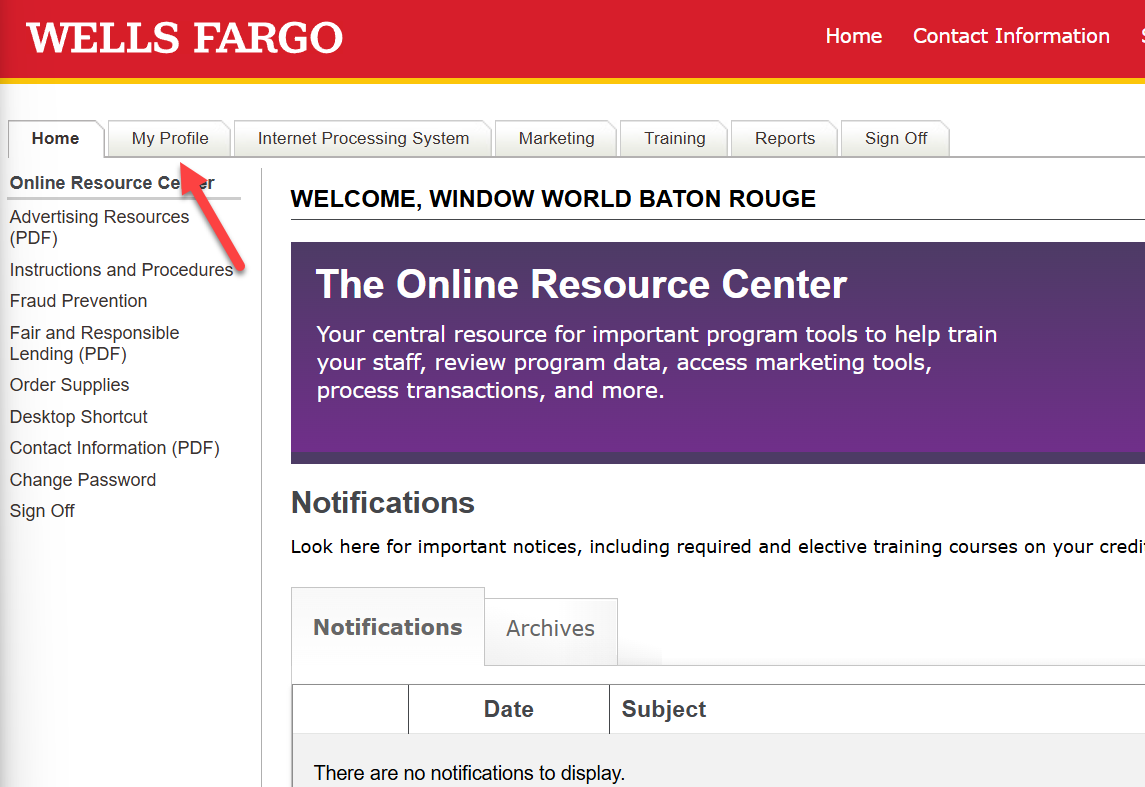
- When you are logged in, go to My Profile:
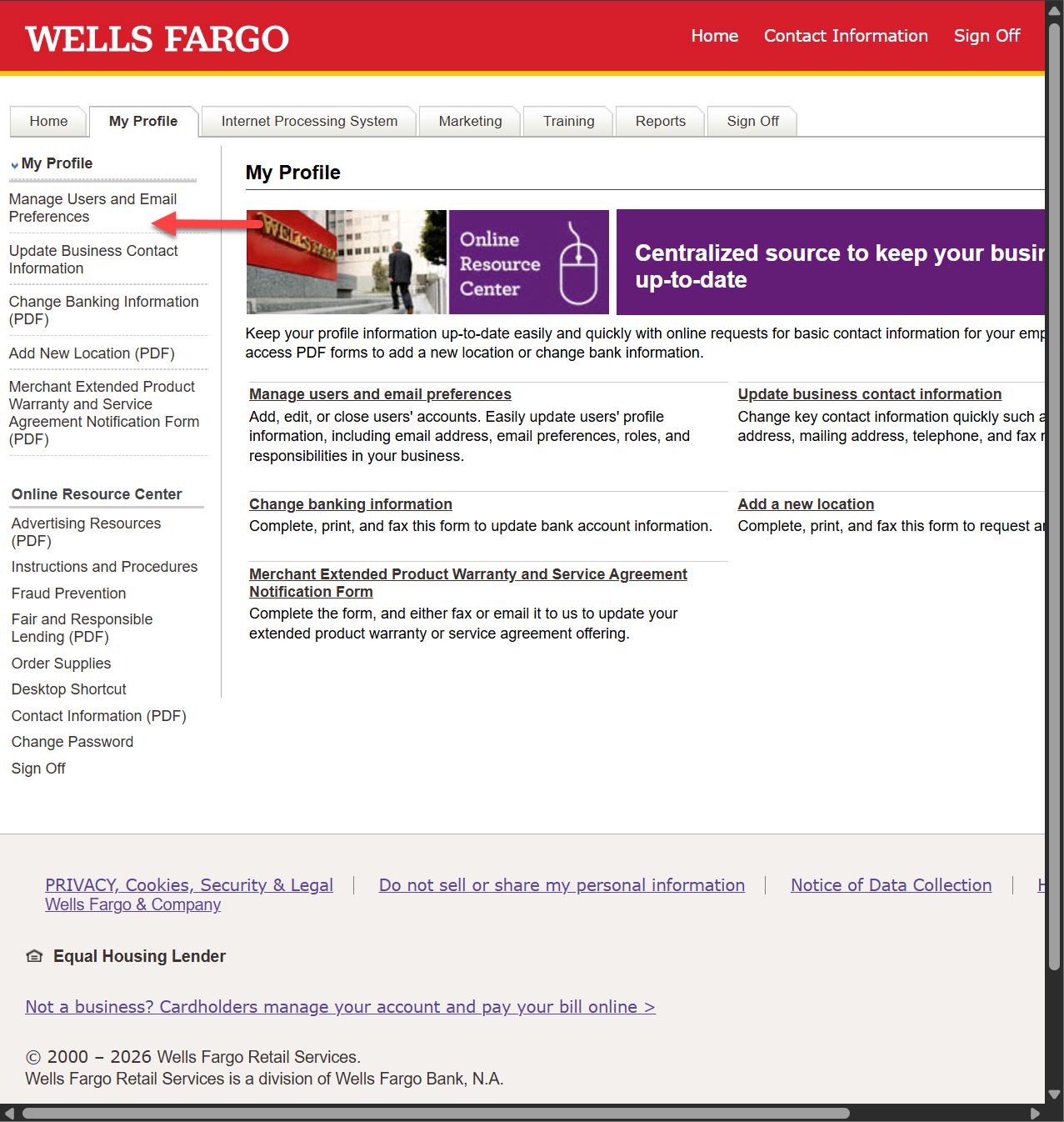
- Go to: Manage Users and Email Preferences
- You will need to validate your security via text, phone or email.
- You will need to know the type of the new user:
- Finance manager
- Marketing
- Office manager
- Owner
- Sales manager
- Sales representative
- Support staff
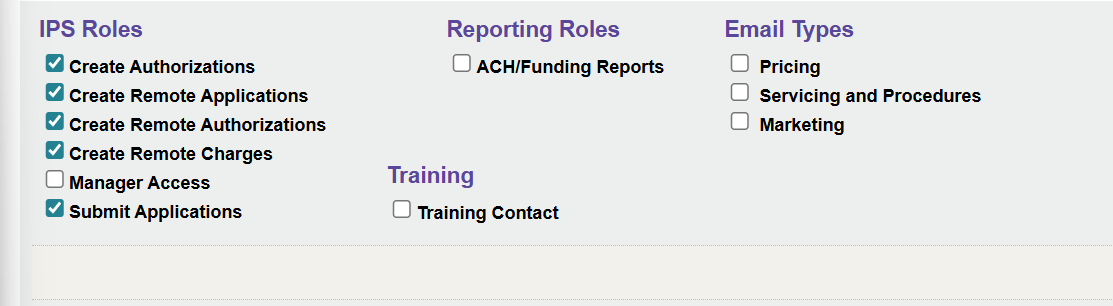
- Additionally, find another user that is the same role and apply the same settings/roles for the new user:
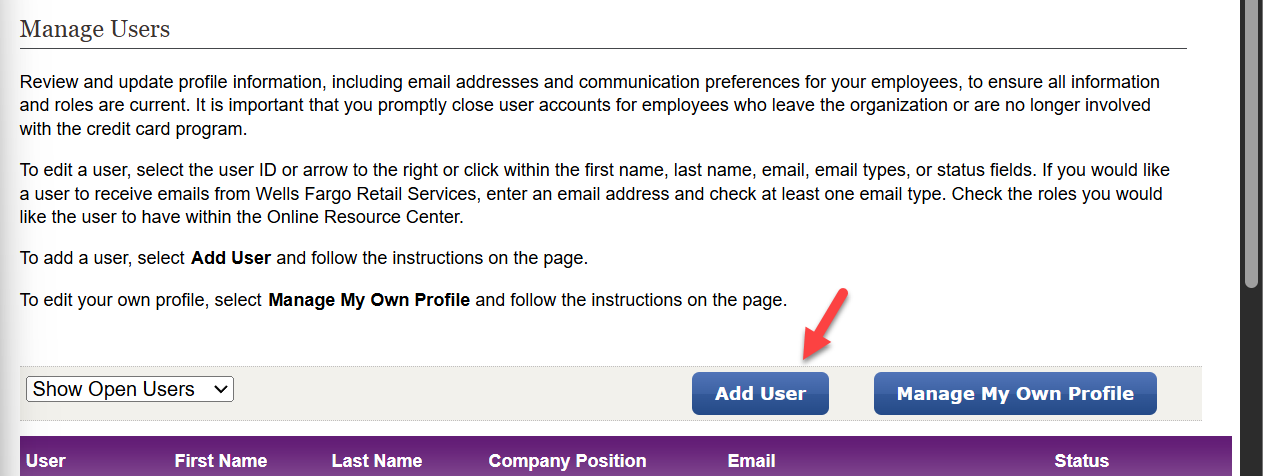
- To add the user, click on Add User:
- Enter the user's username in the following format:
- User Information:
- First name initial, last name, Region
- For instance: Ricardo Murillo in Region: Houston:
- rmurilloHOU
- Enter their Name and company position
- Security Code Delivery Preference:
- For the Contact Method, select Mobile phone
- Enter their email address and phone.
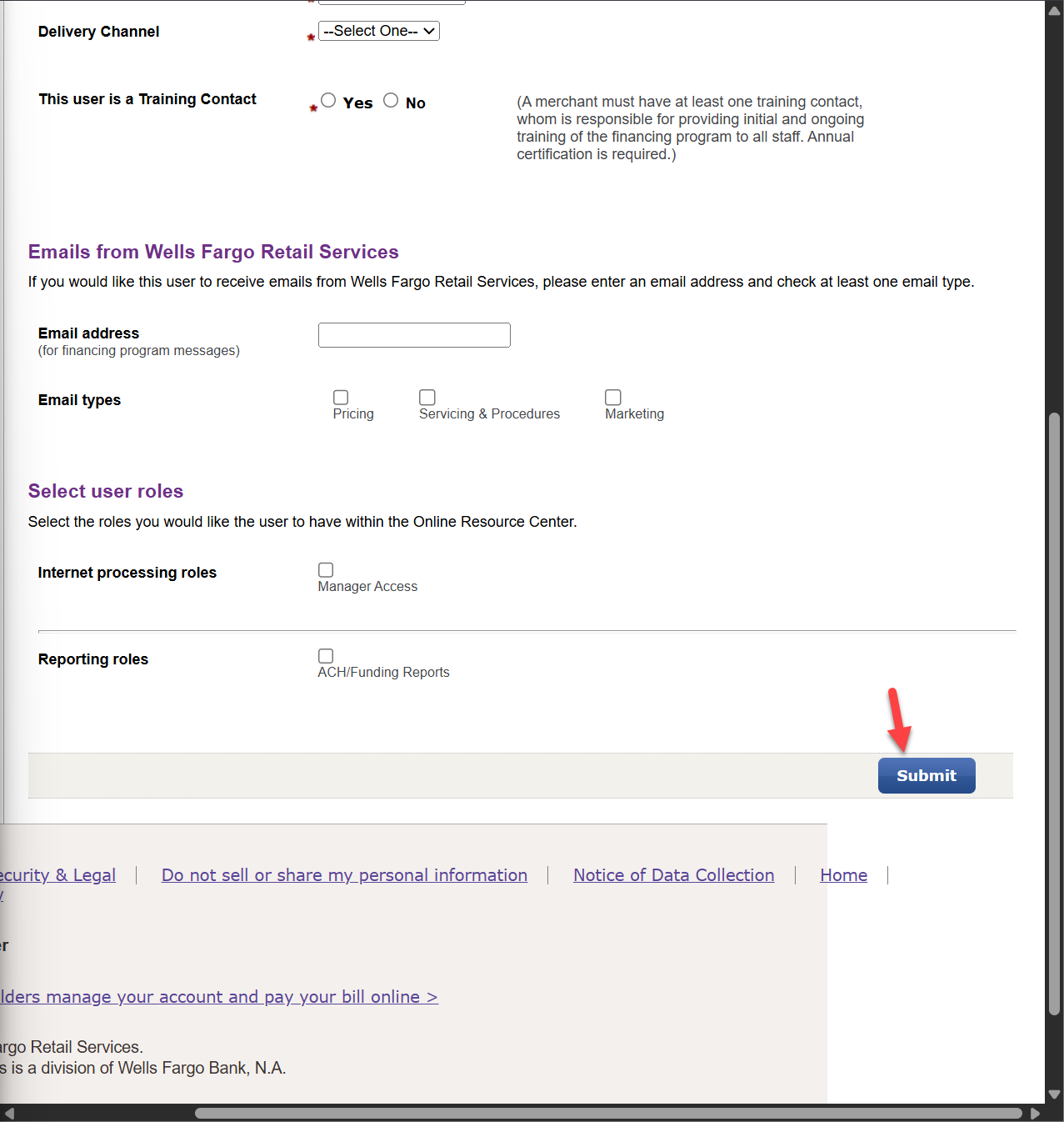
- For the Delivery Channel, select Text
- Under This user is a Training Contact, select No
- Emails from Wells Fargo Retail Services:
- You can leave this empty
- Select user roles:
- Provide the same roles as an existing user with the same role.
- Click the Submit button:
- User Information: