
TABLE OF CONTENTS
This guide will walk you through Adding/Editing an existing user in the iPOSPays system
- To add a new user to our iPOSPays system, navigate to the following page: https://portal.ipospays.com/
- If you do not have an account, reach out to IT@winworldinfo.com
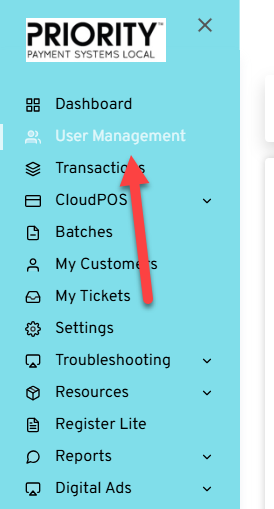
- On the side menu, navigate to User Management:
Adding a User
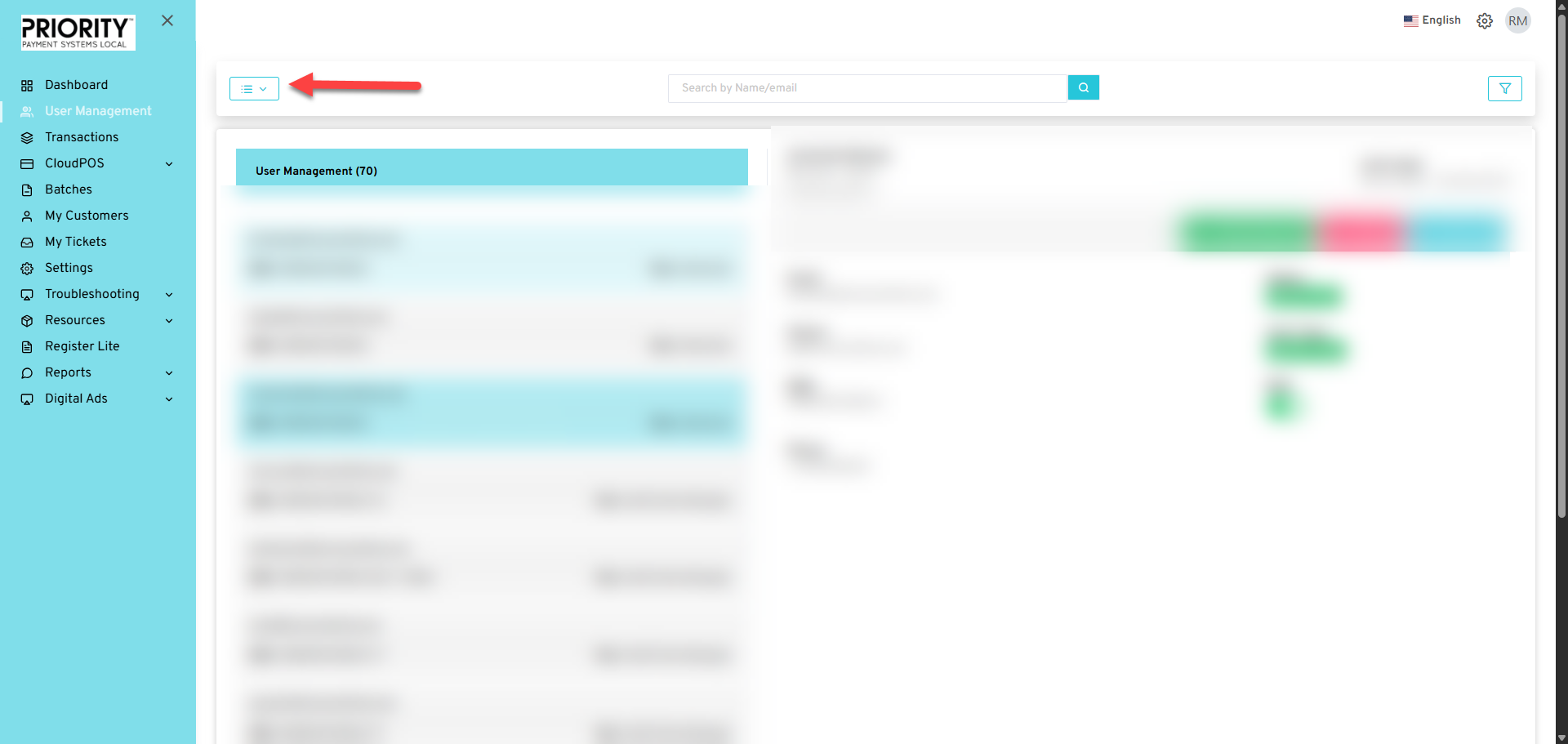
- To add a user, on the User Management page, click on the top-left hand menu item:
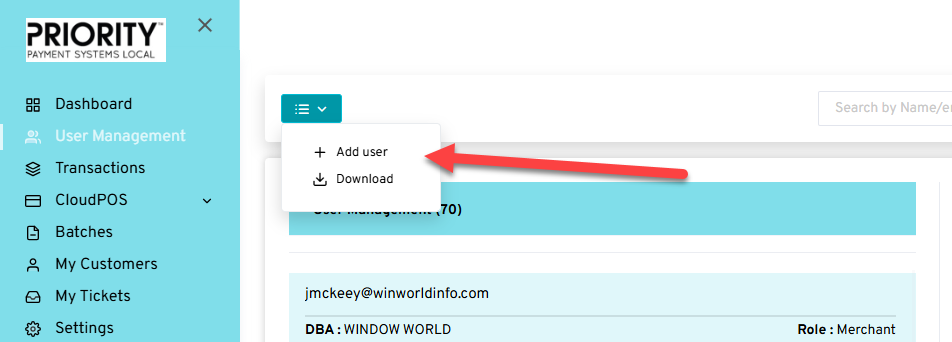
- From the drop-down menu, click on Add user
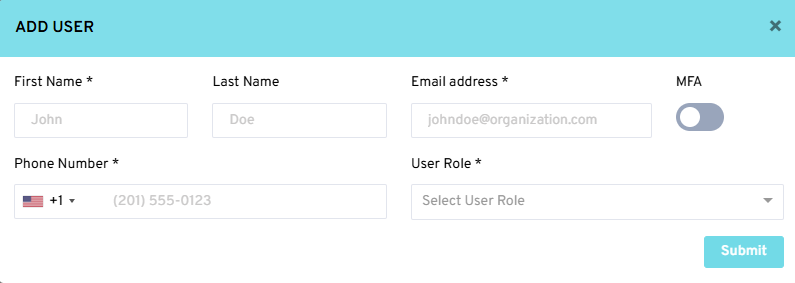
- You will need to get the following information for the account:
- Under the User Role, you can choose one of the following items:
- Merchant Admin - will allow the user to perform administrative functions.
- No additional options needed
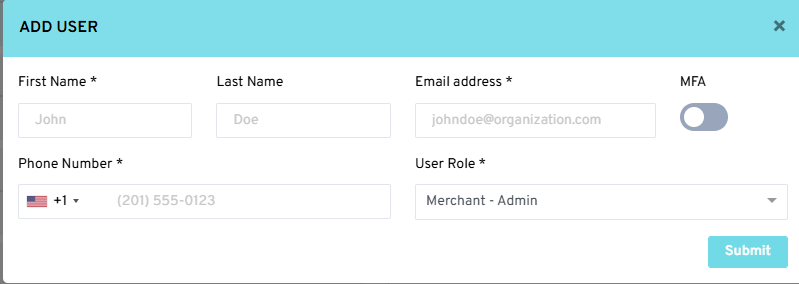
- No additional options needed
- Merchant Operator
- For this option, you will need to select the Modules and Privileges they will need:
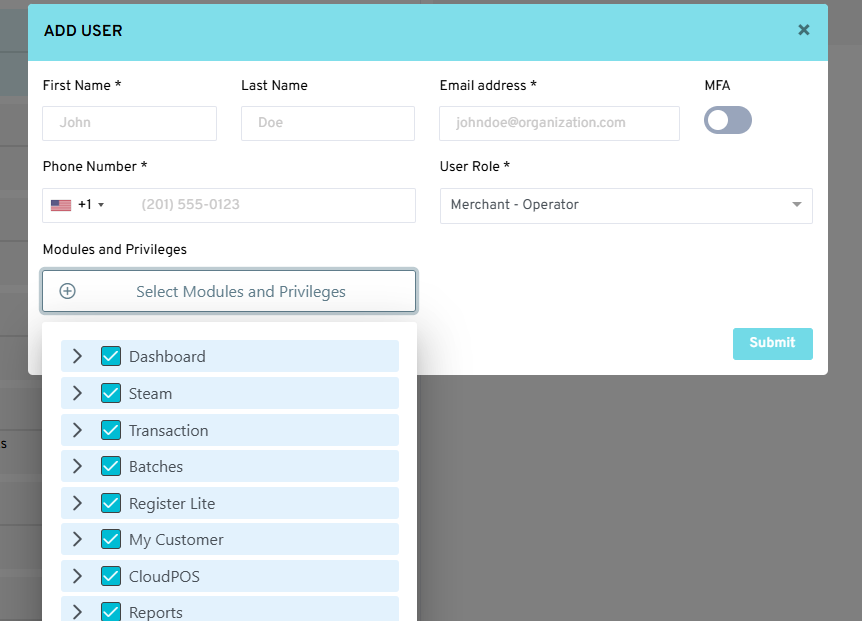
- For this option, you will need to select the Modules and Privileges they will need:
- Multi Store Manager
- For this option, you will need the Stores and the Modules and Privileges for the user:
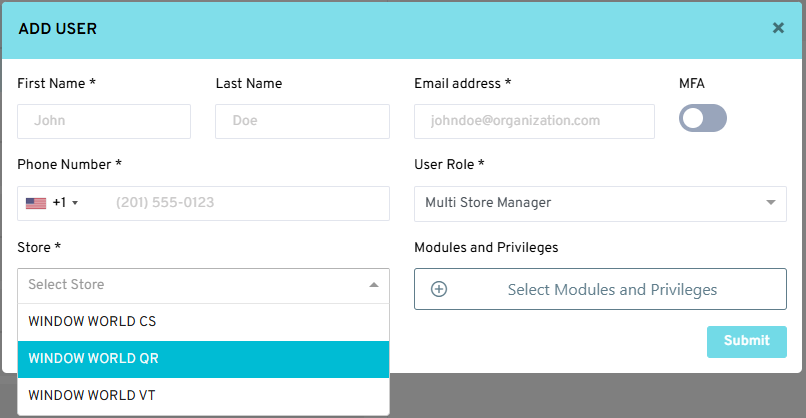
- For this option, you will need the Stores and the Modules and Privileges for the user:
- Store Manager
- For this option, you will need to select with Store they will be managing.
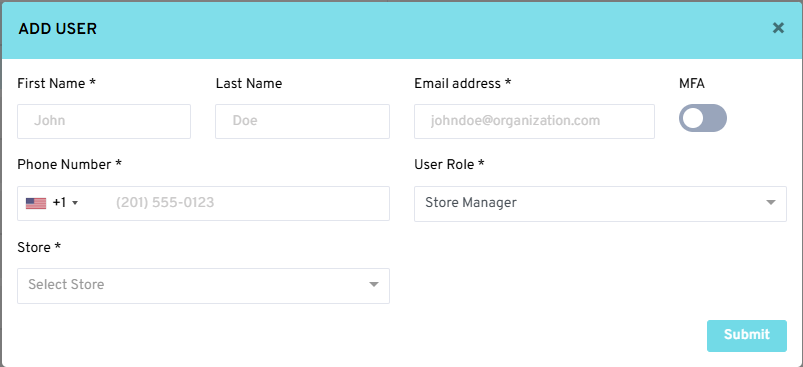
- For this option, you will need to select with Store they will be managing.
- Merchant Admin - will allow the user to perform administrative functions.
Editing a User
To edit a user, you will need to know their name or email address.
- Under the User Management screen, search for the user at the top of the page:

- Once you find the user's record, you can perform one of the following tasks:
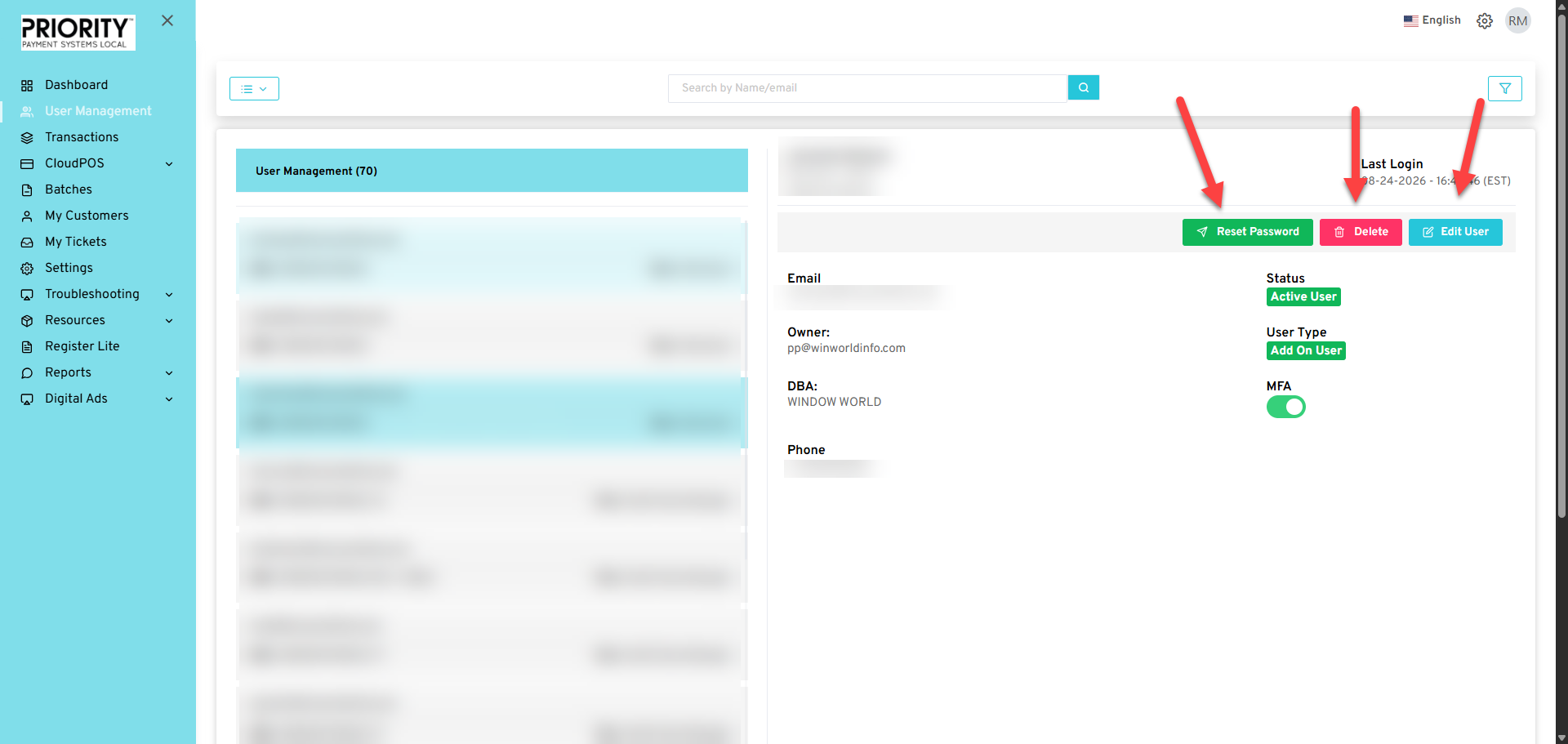
- Reset Password
- This will allow you to reset the user's password
- Delete
- This will delete the user
- Edit User
- This will allow you to update any of their information previously set, including the MFA option.
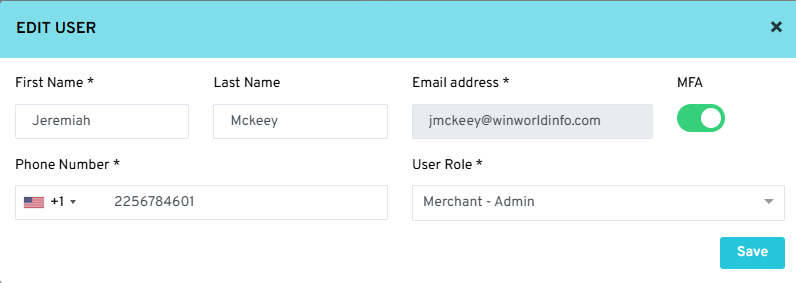
- This will allow you to update any of their information previously set, including the MFA option.
- Reset Password
- Once the edit is complete, you will be asked for 2FA confirmation to finalize the change.
User Activation
- Once a user has been created, they will receive an email with the subject:
Dejavoo - iPOSPays - Account Confirmation - They will need to confirm this to activate their account.
- If the user is unable to find the email, a new activation link can be sent via the portal:
- Search for the user's account and on their profile, you will see the 'Activation Link' button instead of the 'Reset Password'
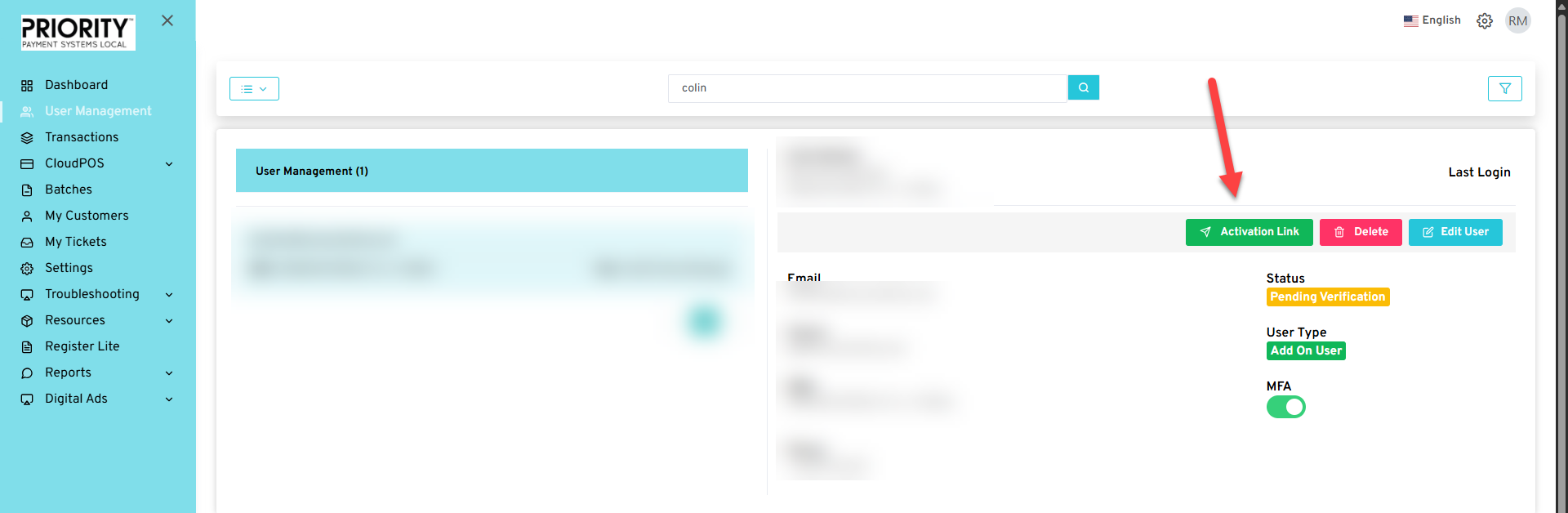
- You can also see when they last login on the top right hand side, above the buttons.
- Search for the user's account and on their profile, you will see the 'Activation Link' button instead of the 'Reset Password'
- If the user is unable to find the email, a new activation link can be sent via the portal: