
Splashtop Set up
If you are remoting into your computer you will need to be set up in splashtop. You should recieve an email from splashtop that will allow you to create a password. Once you've created a password you will need to set up 2 step verification by downloading Google Authenticator to your phone and following the steps in this link (https://support-splashtopbusiness.splashtop.com/hc/en-us/articles/212724923-How-do-I-set-up-two-step-verification-2FA-).
Once you've set up your account you'll want to open the Splashtop Business (purple icon) app on your laptop. If you don't have splashtop business on your laptop the download link is here. (download link) Once you open it you will use the information you set when creating your splashtop account to log in. I. E. Username= work email and password= password you just created. Then it will ask you to input one of the codes generated by the authenticator app you downloaded. For further instructions read the following article (article).
Desk phone Set up
To set up the phone at home you will need to connect the network cable provided from the back of the phone in the port labeled LAN(=) to the back of your modem or wifi box shown below.
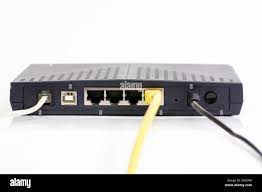
Next connect the power cable to the phone. The phone should boot for a few minutes then show the usual screen. If the screen doesnt appear as normal that either means your wifi is out or the phone is not configured correctly. If you have confirmed your wifi is fine then call IT for assistance.
Monitor Setup
Connect the power cable for the monitor to the wall. Plug the HDMI cable shown below into the monitor then to the computer.
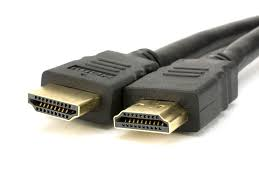
To extend the display instead of mirroring it right click the windows icon in the bottom left corner then click settings. Click the first option System. It should show a screen that says Display at the top. Scroll down to where it says Multiple displays and switch to Duplicate these displays to Extend these displays.