
TABLE OF CONTENTS
The Customer Information page shows you the lead's record and its associated report:
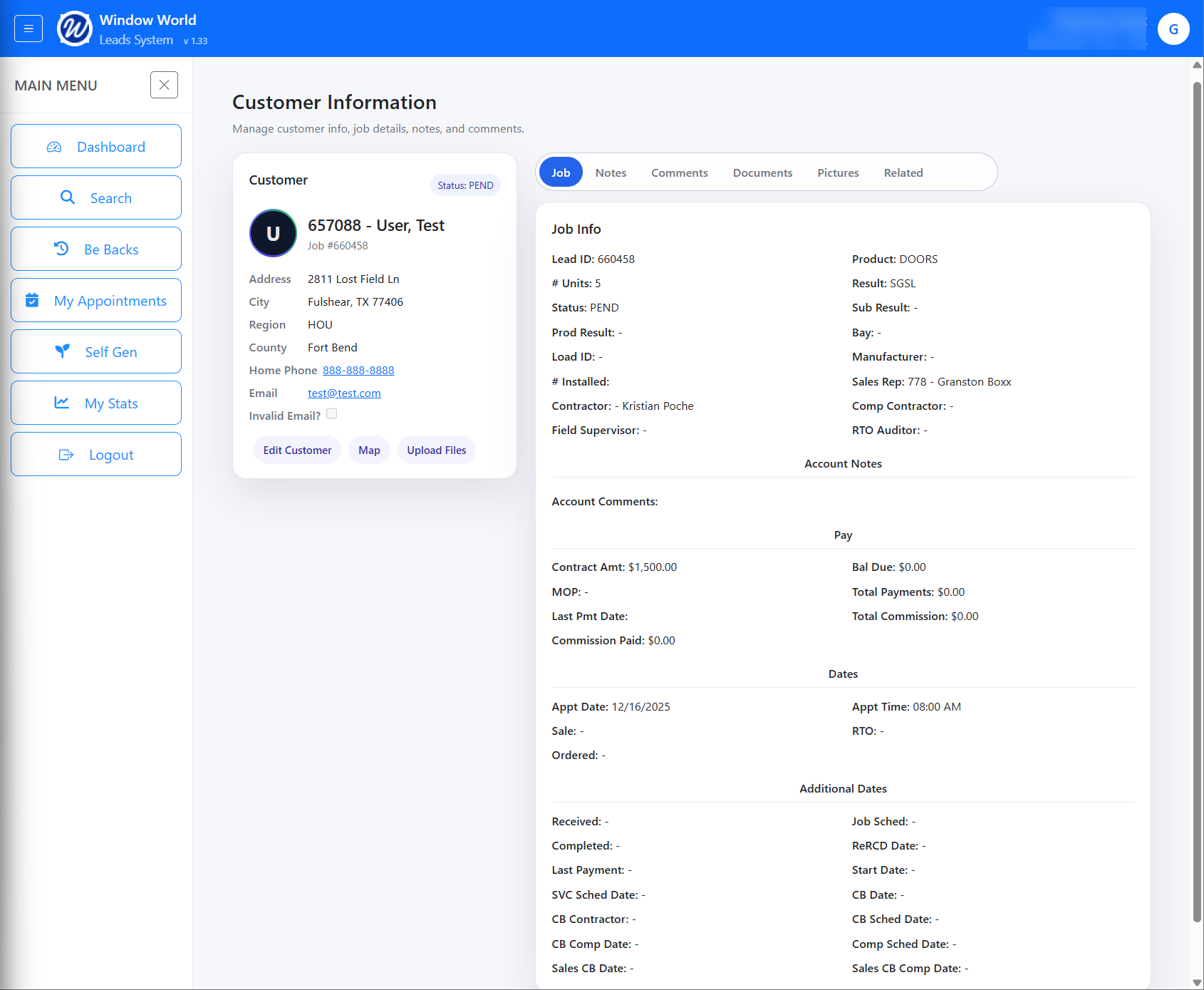
Navigation:
There are two navigation options:
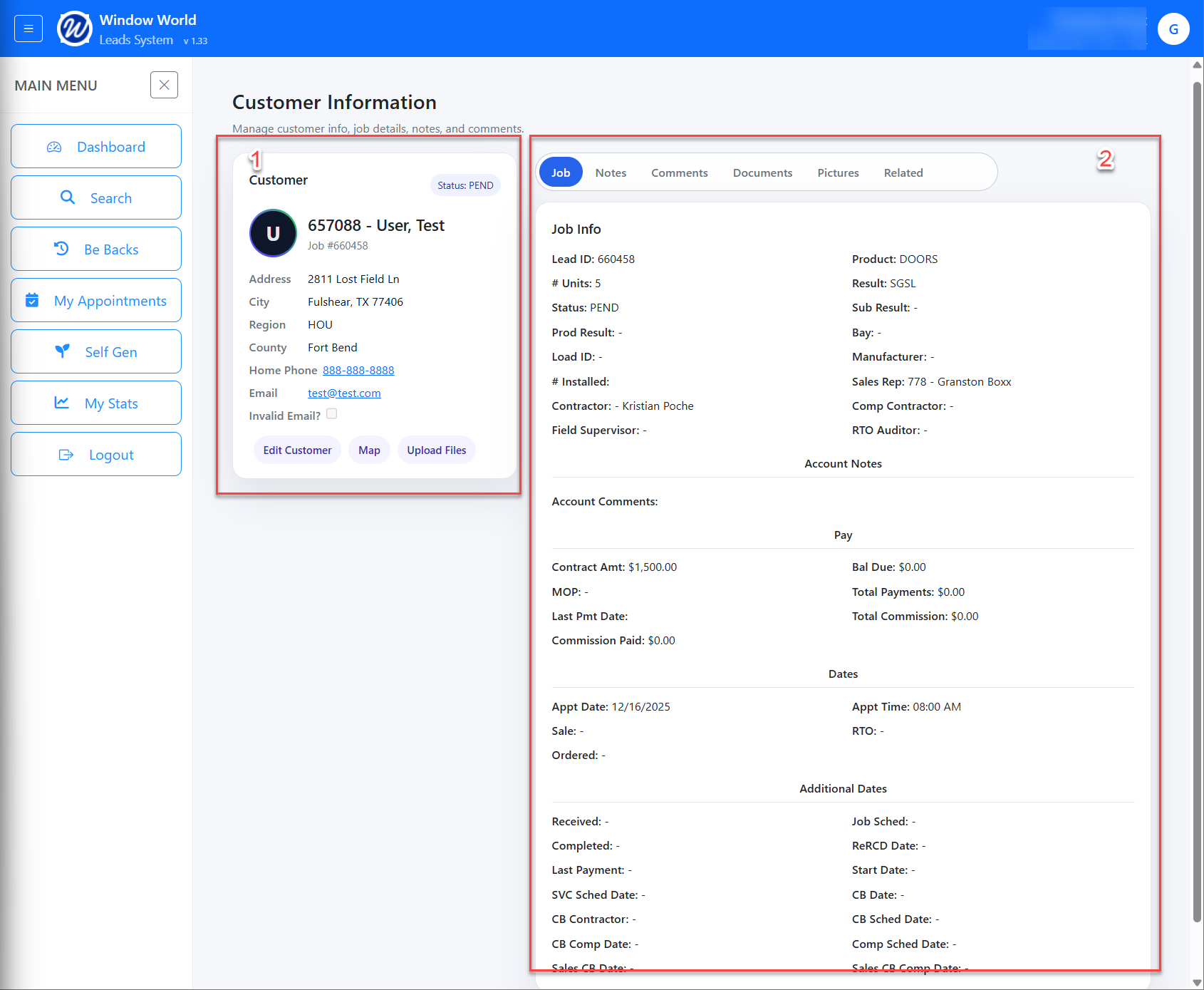
- Under section 1, it provides the Customer's contact information:
If there are any missing data, such as Cell Phone, Work Phone, Alt Email, etc, this will not be shown under the customers information.- PID
- First and Last Name
- Job ID
- Address
- City
- Region
- County
- Home Phone
- Cell Phone
- Work Phone
- Alt Email
- Invalid Email
- Buttons:
- Edit Customer
- Map
- Upload Files
- Under section 2, it provides a tabular view with the following tabs:
- Job
- Notes
- Comments
- Documents
- Pictures
- Related
Buttons:
Edit Customer:
- By clicking this button, it will take you to the 'Edit Customer' page.
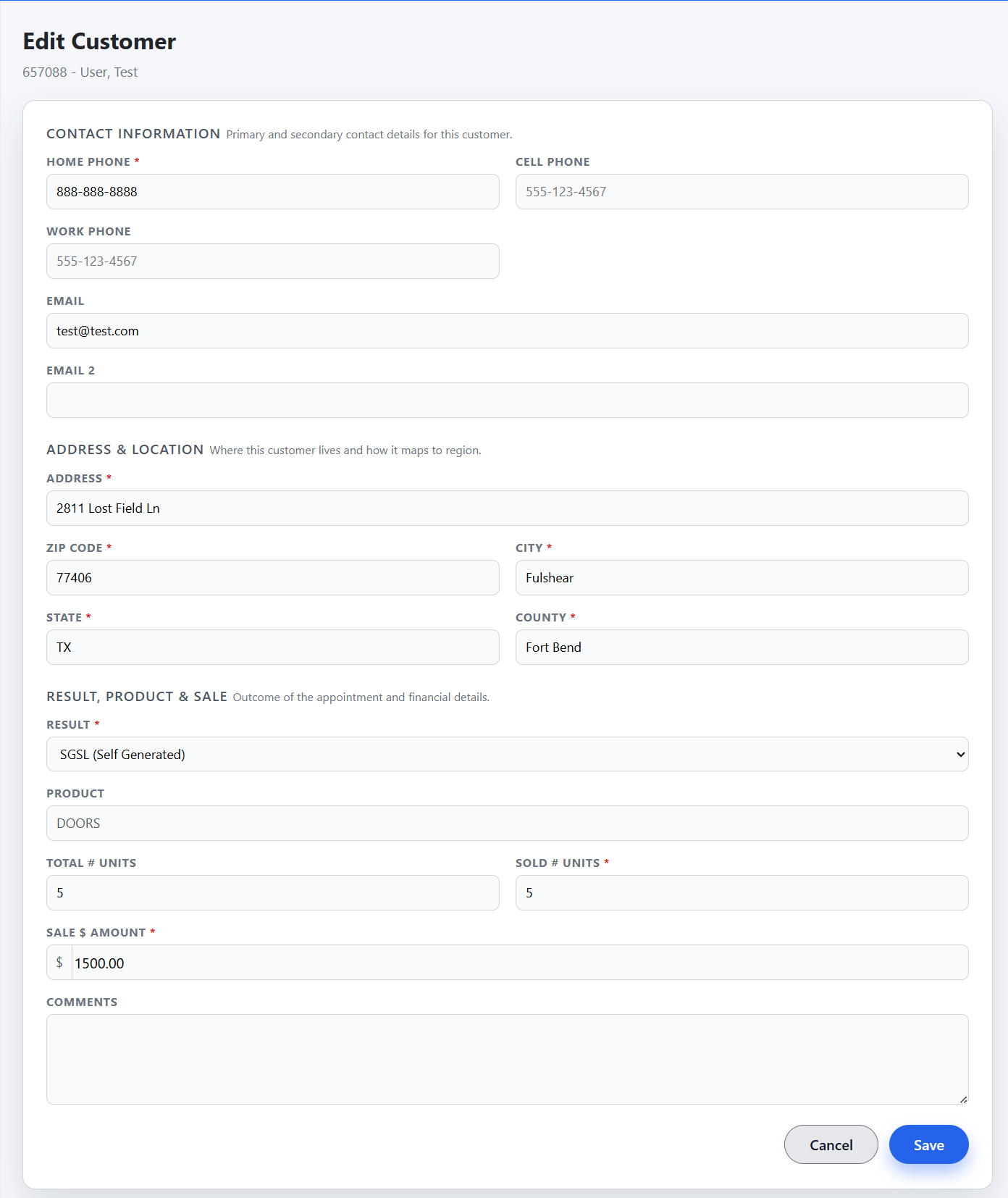
- Here you can update certain data points for the lead:
- Contact Information:
- Home Phone
- Cell Phone
- Work Phone
- Email 2
- Address & Location
- Address
- Zip Code
- City
- State
- County
- Result, Product & Sale
- Result
- Product
- Total # Units
- Sold # Units
- Sale $ Amount
- Comments
- Contact Information:
- You can update it by clicking the Save option or discard it by clicking Cancel.
Map:
- By clicking this button, this will open google maps and provide the location of the customer address on the map in a new window.
Upload Files:
- By clicking this button, it will open a modal allowing you to upload a file for this customer:
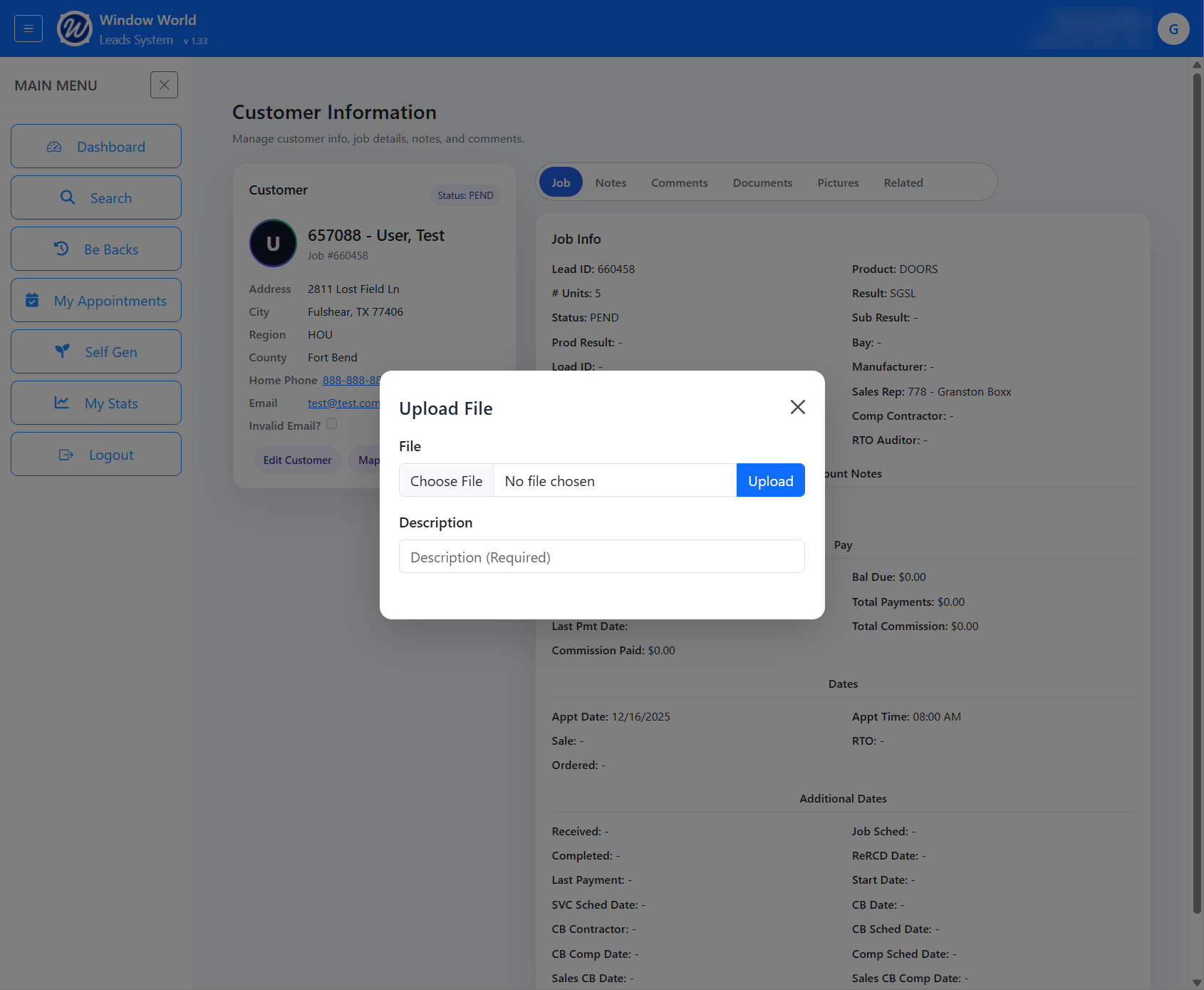
- You can upload a document or image here.
- Note that you will need to provide a description as it is required to upload a file.
Tabs:
Job
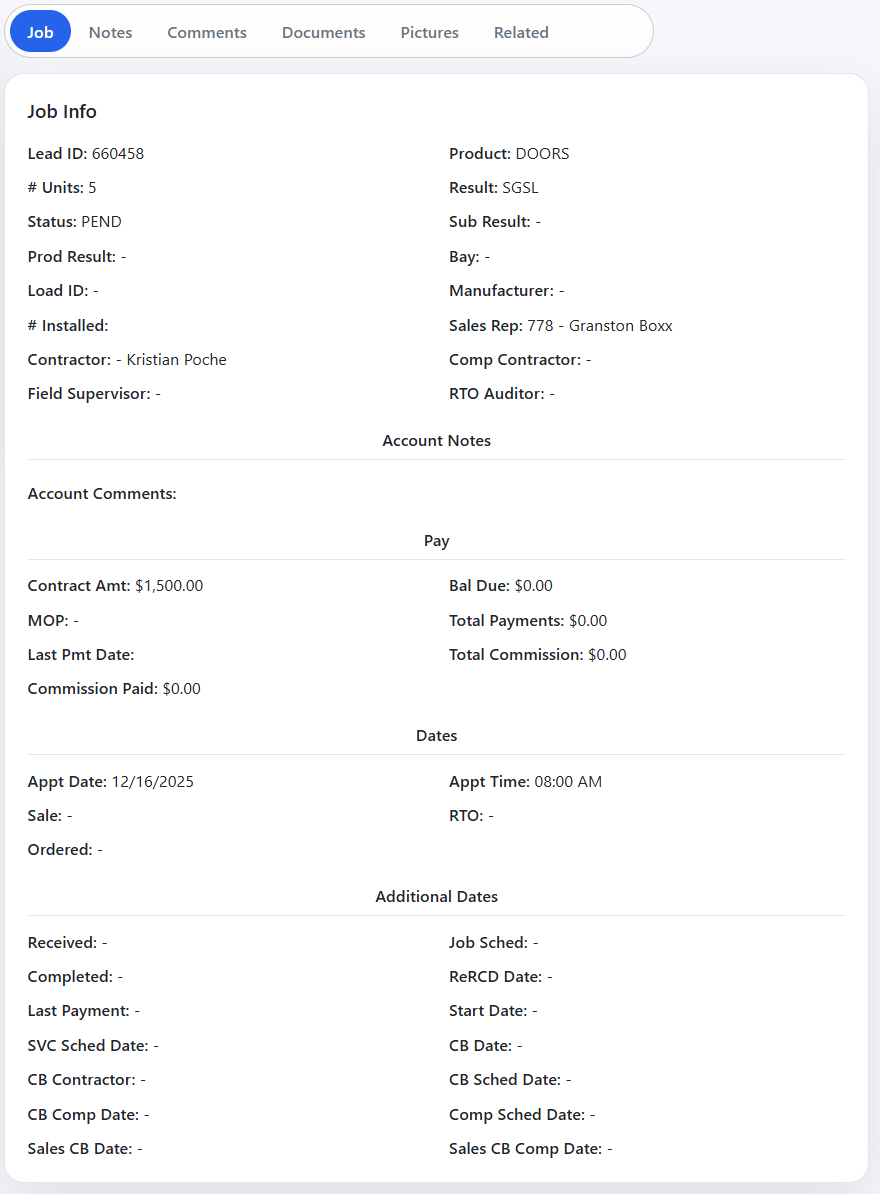 Under the jobs section, it provides you with the Job's overview by showing:
- Job Info
- Job ID
- Product sold
- # of Units
- Result code
- Status
- Account Notes
- Provides the account comments, any comment provided here will be in red
- Pay
- Contract Amt
- Bal Due
- MOP
- Payments made and when
- Total Commission and Commissions Paid
- Date
- App Date
- Appt Time
- Sale
- RTO
- Ordered
- Additional Dates
- Received
- Job Scheduled
- Completed
- ReRCD Date:
- etc.
Notes
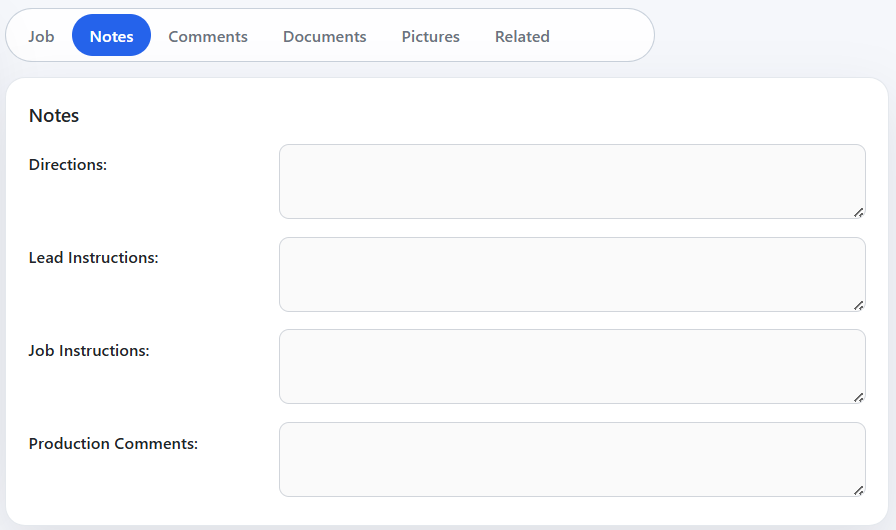
- The Notes section only provides the notes for the customer, you cannot update these comments.
Comments
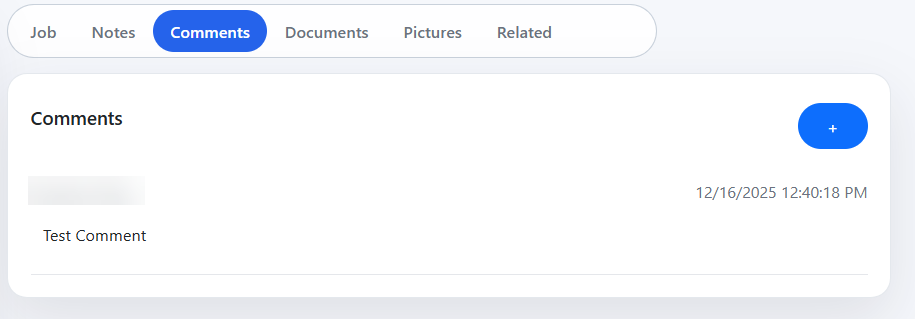
- The Comments section provides all the comments added to the record.
- Each comment will show the user who posted it on the top left hand side, the date stamp on the right and the comment underneath.
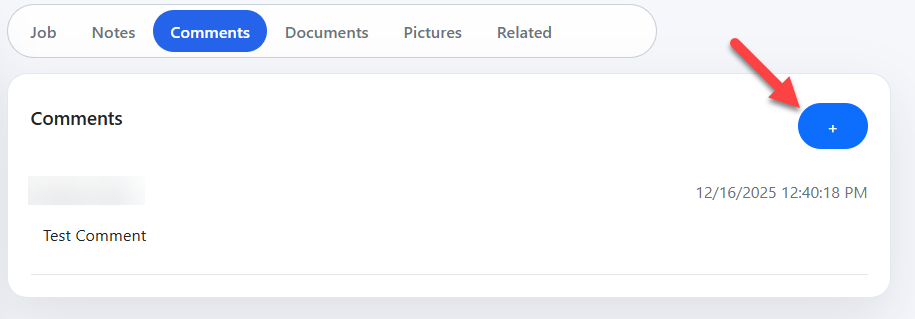
- Users can add new comments by clicking on the blue button with a plus sign.
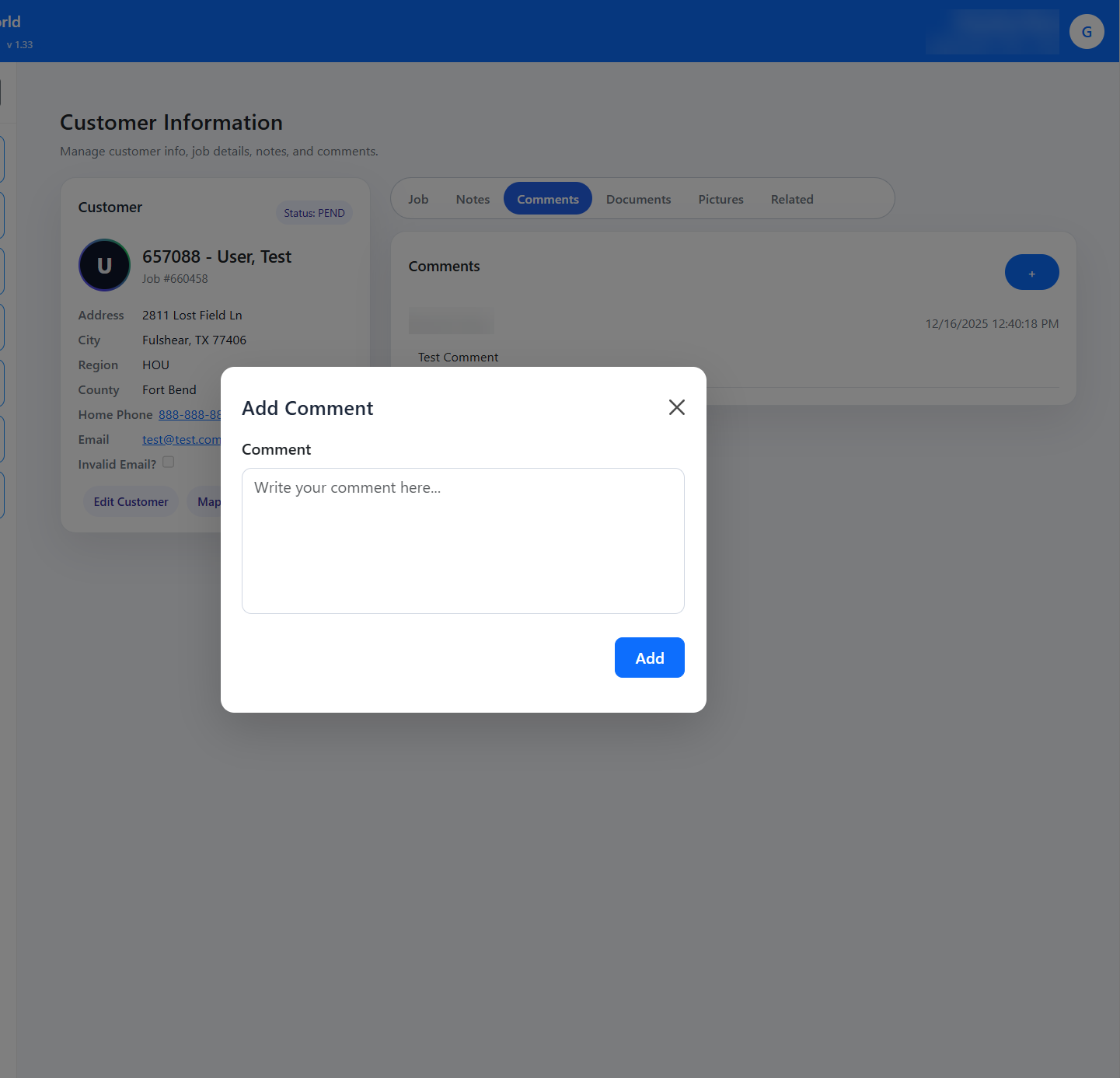
- This will open the modal to enter a new comment.
- To add it to the record, the user will click the 'Add' button
- To cancel, they can click on the X found on the top right hand corner of the modal
- You can also click anywhere outside of the modal to close it.
Documents
- Under the documents, you will find any uploaded documents for this lead. You can click on it to open and view the files
Pictures
- Under the photos, you will find any uploaded images for this lead.
Related
- Under the related section, it will show you any related leads that share the same:
- First Names
- Last Name
- Address
- Phones (Home, Work, Cell)
- This will show you the records of the associated leads. You can click on them to view the Customer Information.